Process Orders
Step 1: View Pending Orders
Click "Members & Orders" → "Orders" in the left menu. By default all orders are shown — use the status filter to select "Paid" to see orders waiting to be processed.
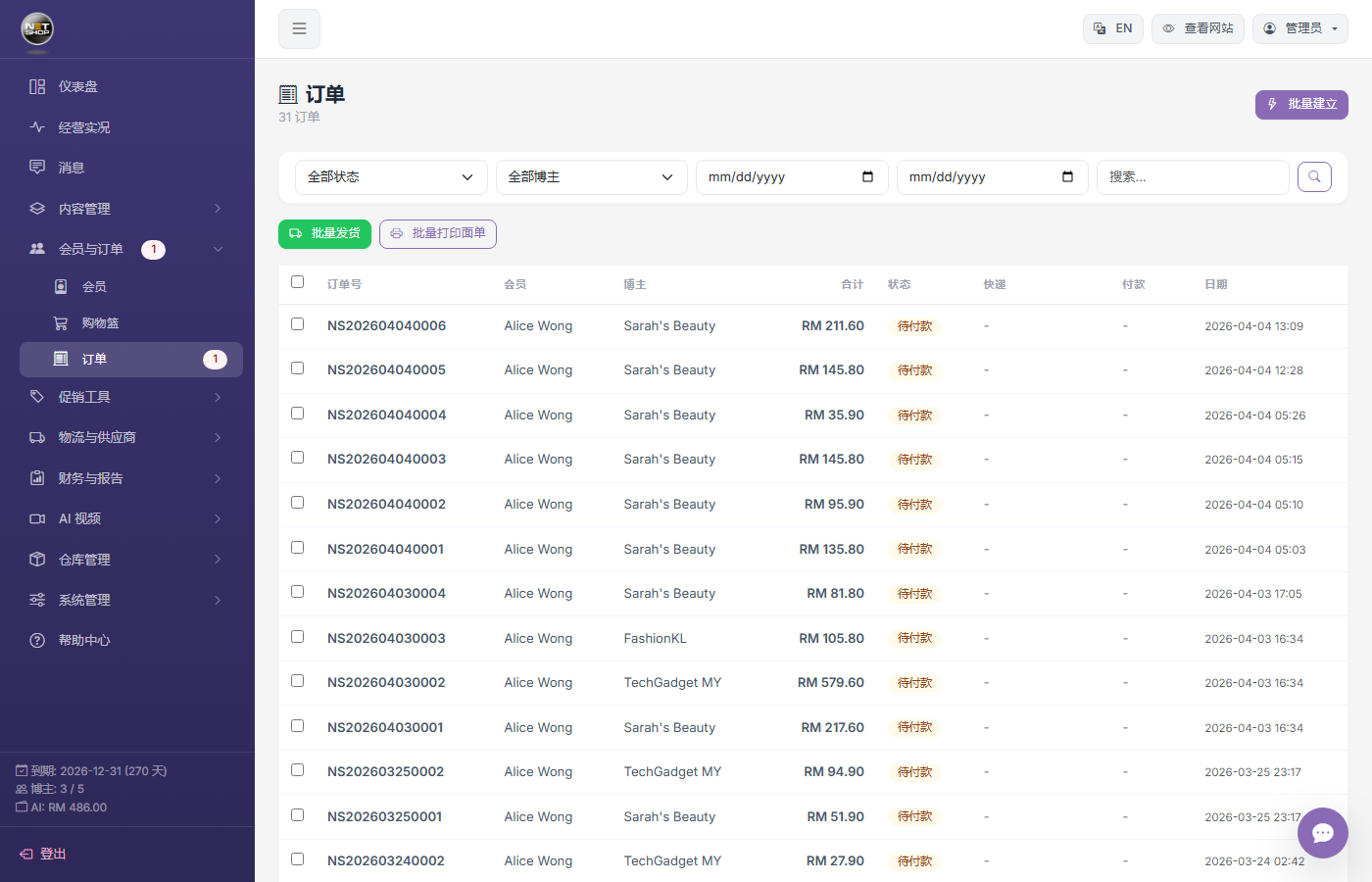
Order list page — Use the status filter to choose "Paid"
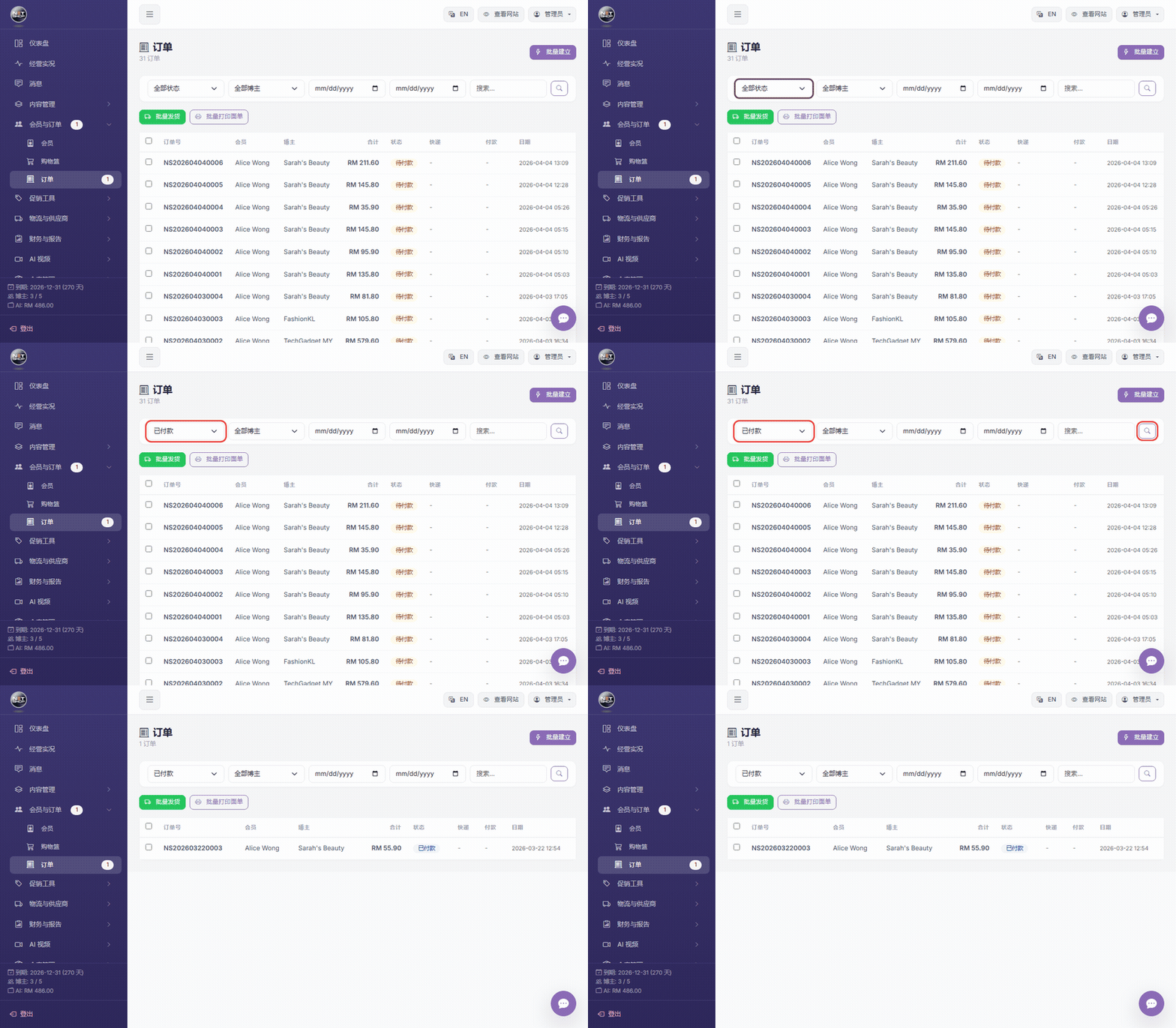
▶ Animation: Choose status filter and search orders
Step 2: View Order Details
Click an order row to enter its detail page and check:
- Order item details (name, quantity, unit price)
- Shipping address
- Payment info
- Notes
💡 Tip:Click any row in the order list to enter its detail page.
Step 3: Ship
There are two ways to ship:
Option A: Ship via the Ship Courier System
- On the order detail page, click the "Ship" button
- Choose a courier (defaults to the system-configured courier)
- Confirm sender info
- The system automatically generates a waybill and tracking number
💡 Tip:On the order detail page, click "Ship" → choose a courier in the popup → click "Confirm Shipment". The system auto-generates a waybill and tracking number.
Option B: Manually Enter Tracking Number
- On the order detail page, find the "Tracking Number" section
- Enter the courier name and tracking number
- Save — the order automatically updates to "Shipped"