Add New Product
Step 1: Enter the New Product Page
Click "Content Management" → "Products" in the left menu, then click the "Add New Product" button in the top right.
👉
Click the left menu "Content Management" → "Products", then click the green + Add New Product button in the top right
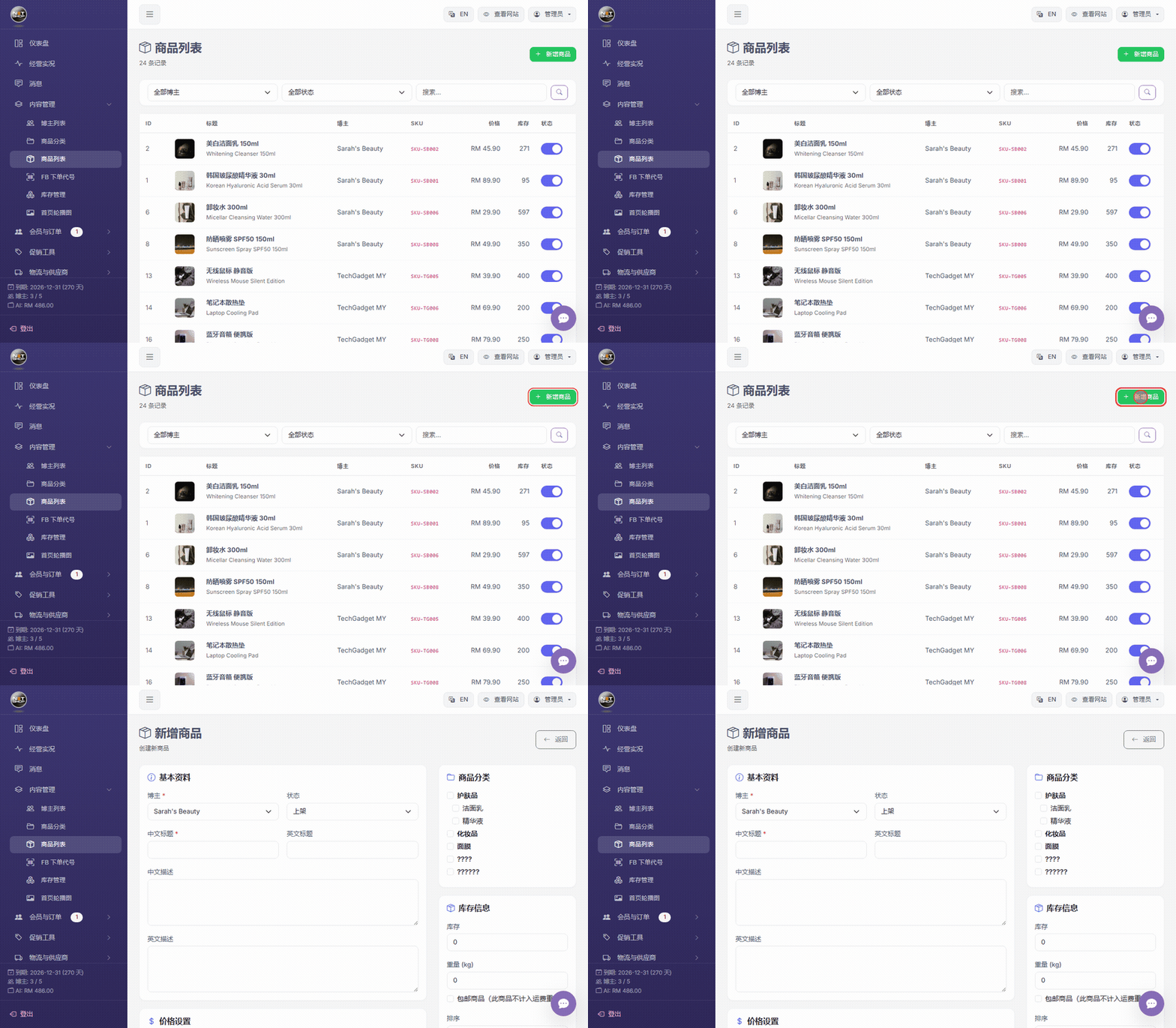
▶ Animation: Navigate to product list and click Add New Product
Step 2: Fill in Basic Info
| Field | Description | Required |
|---|---|---|
| Chinese Name | Product name in Chinese | Yes |
| English Name | Product name in English | No |
| Product Code | Internal code (e.g., ITEM-001) | No |
| SKU | SKU Code | No |
| Live Quick Code | Quick code for live ordering (e.g., sb001), globally unique | No |
| Chinese Description | Detailed product description (rich text supported) | No |
| Category | Product category | Yes |
| Blogger | Blogger this product belongs to | Yes |
💡 Tip:Fields marked with * are required. Select the blogger and category first, then fill in the product name and price.
Step 3: Set Pricing
The system supports tiered pricing — different prices for different member levels:
| Price Field | Description |
|---|---|
| Cost Price | Product cost (internal reference) |
| Member Price | Price for regular members (required) |
| Wholesale Price | Price for wholesalers |
| Agent Price | Price for agents |
Cost Price
RM 30
Internal reference
Member Price
RM 59
Required
Wholesale Price
RM 45
Optional
Agent Price
RM 35
Optional
Different member tiers see their own corresponding price
Step 4: Inventory & Weight
- Stock Quantity — Set the initial stock
- Weight (kg) — Used to calculate shipping
Step 5: Other Options
- Free Shipping — When ticked, this product is excluded from shipping fees
- Exclude Coupons — When ticked, coupons cannot be used on this product
- Purchase Points — Points awarded after purchase
- Sort Order — Lower numbers appear first
Step 6: Save
Click the "Save" button to create the product. After saving, you can continue uploading images and setting options.